

Voice (BETA)
Simplify your server experience! With TeamPanel Voice, you take voice chat to the next level.
Voice (BETA)
Info
Our game voice chat currently supports FiveM and Minecraft – this is a BETA.
Enable VoiceChat
Open VoiceChat module
To create a voice channel, navigate while logged in with a TeamPanel account to the following button to open the hidden Voice module page:
Voice Module (BETA)Create VoiceChannel
Info
In the beta, only one voice channel can currently be created per team. However, each server or sub-server requires its own voice channel. This limit will be increased later.
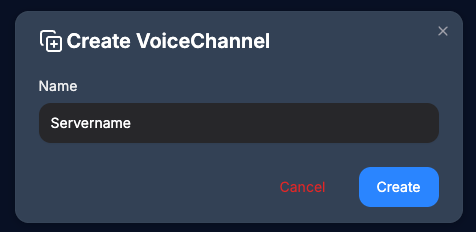
Click the blue plus in the top right to create a voice channel. Then choose a name. This can be freely chosen and is used for later assignment.

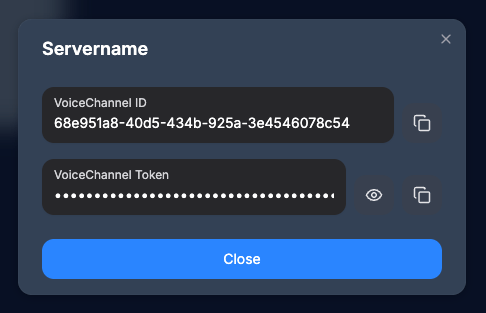
VoiceChannel ID & Token
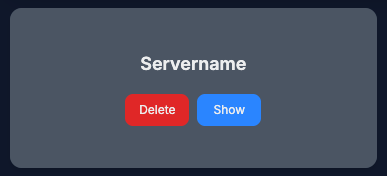
When you click the blue button now, the access credentials for your newly created voice channel are displayed. These are required to establish a connection.
Configure server
Set up VoiceChat for FiveM server
You need our TeamPanel Voice script on the server. You can unlock it for free on Ovara.gg Shop via Keymaster and then download it.
Ovara.gg Shop
Cfx.re Keymaster
After adding the script to your FiveM resources, you only need to enter your voice channel credentials in server.cfg.
set tp_voice_channel <channelID>
set tp_voice_token <token>
Example from the CFG editor:
# TeamPanel VoiceChannel ID
set tp_voice_channel 68e951a8-xxxx-xxxx-xxxx-xxxxxxxxxxxx
# TeamPanel VoiceChannel Token
set tp_voice_token f539e9bf-xxxx-xxxx-xxxxxxxxxxxx
Now you need to restart the FiveM server once (not just the script).
Setup is successful when the following message appears in the txAdmin console:

Set up VoiceChat for Minecraft server
You need our TeamPanel Voice plugin on the server. You can unlock it for free on YourMcShop via Keymaster and then download it.
YourMcShop
YMS Downloads
After uploading the plugin to your Minecraft server, you only need to enter your voice channel credentials in config.json.
Example from the McTPVoice config:
{
"locale": "en",
"debug": false,
"voiceChannelId": "68e951a8-xxxx-xxxx-xxxx-xxxxxxxxxxxx",
"apiToken": "f539e9bf-xxxx-xxxx-xxxxxxxxxxxx",
"voiceRanges": [
3,
6,
12,
16,
32
],
"autoRequestCode": true
}
Now you need to restart the Minecraft server once (not just the plugin).
Setup is successful when the following message appears in the console:

Use VoiceChat as a player
1. Open VoiceChat
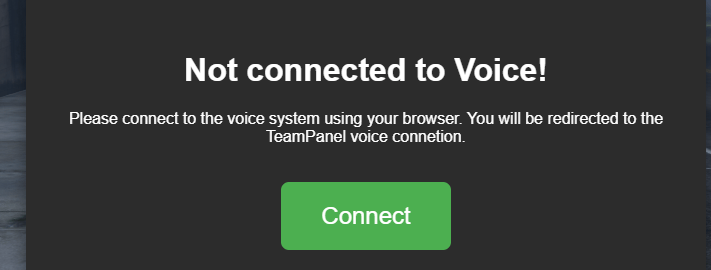
When your players reconnect to your FiveM server, the following pop-up appears on join. Clicking the green button opens a new browser window for TeamPanel Voice.
2. Allow microphone
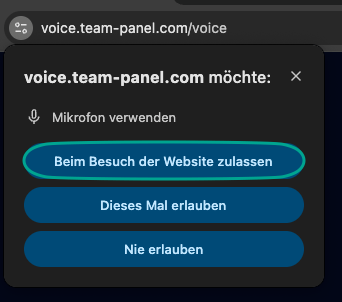
On first use of the Voice website, you are asked whether you want to enable the microphone. You must allow this, otherwise the microphone will not work.
3. Sign in
Success
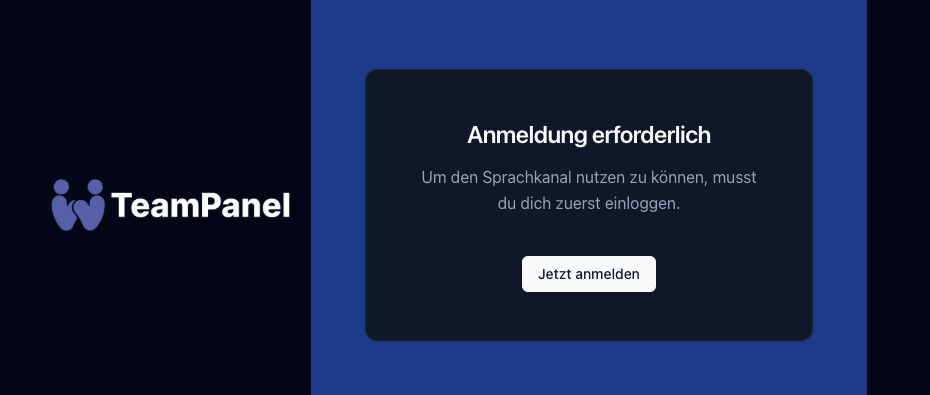
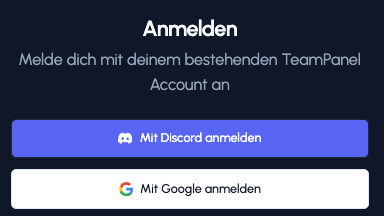
We recommend signing in with Discord or Google to get started immediately without email verification. That way you do not need to remember an email or password.
4. Microphone and speaker settings
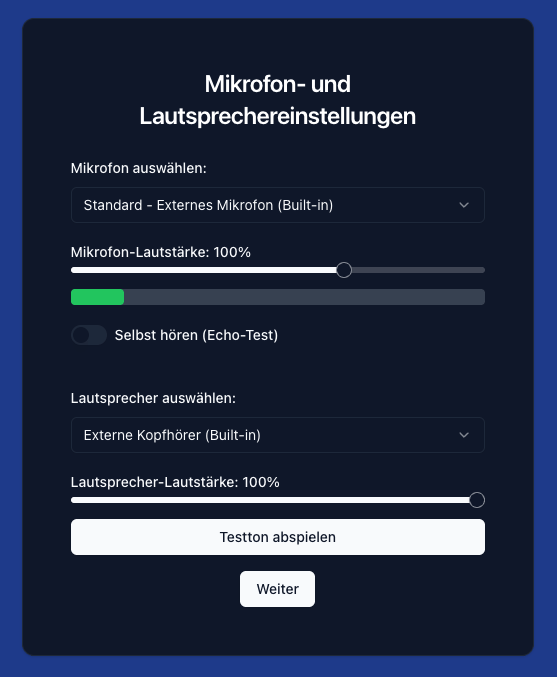
Choose your preferred microphone and speaker source here. You can also use the test functions to verify your settings.
5. Connect VoiceChat


:tada: Have fun in voice chat! We look forward to your feedback.
1. Open VoiceChat

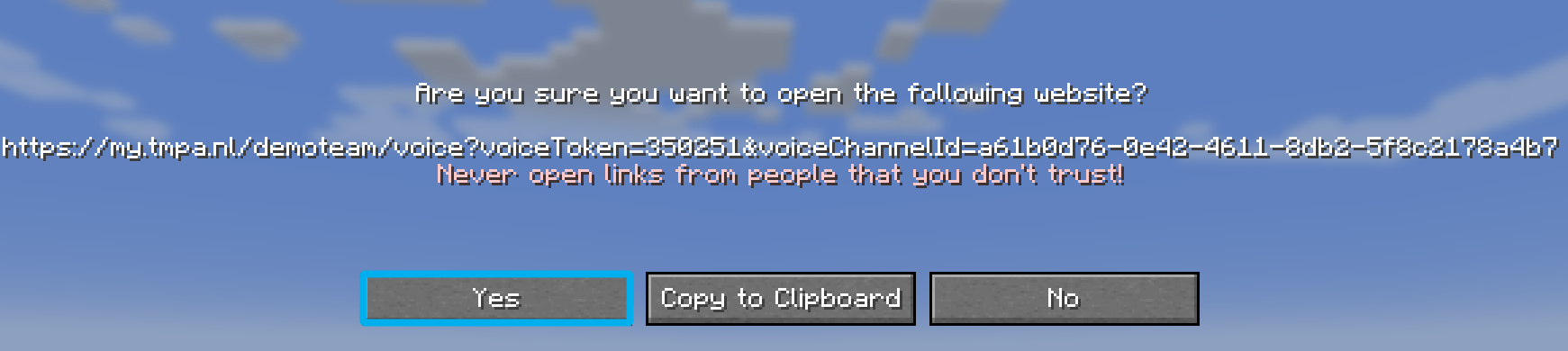
When your players reconnect to your Minecraft server, the following message appears in chat on join. Clicking the link opens a new browser window for TeamPanel Voice.
2. Allow microphone
On first use of the Voice website, you are asked whether you want to enable the microphone. You must allow this, otherwise the microphone will not work.
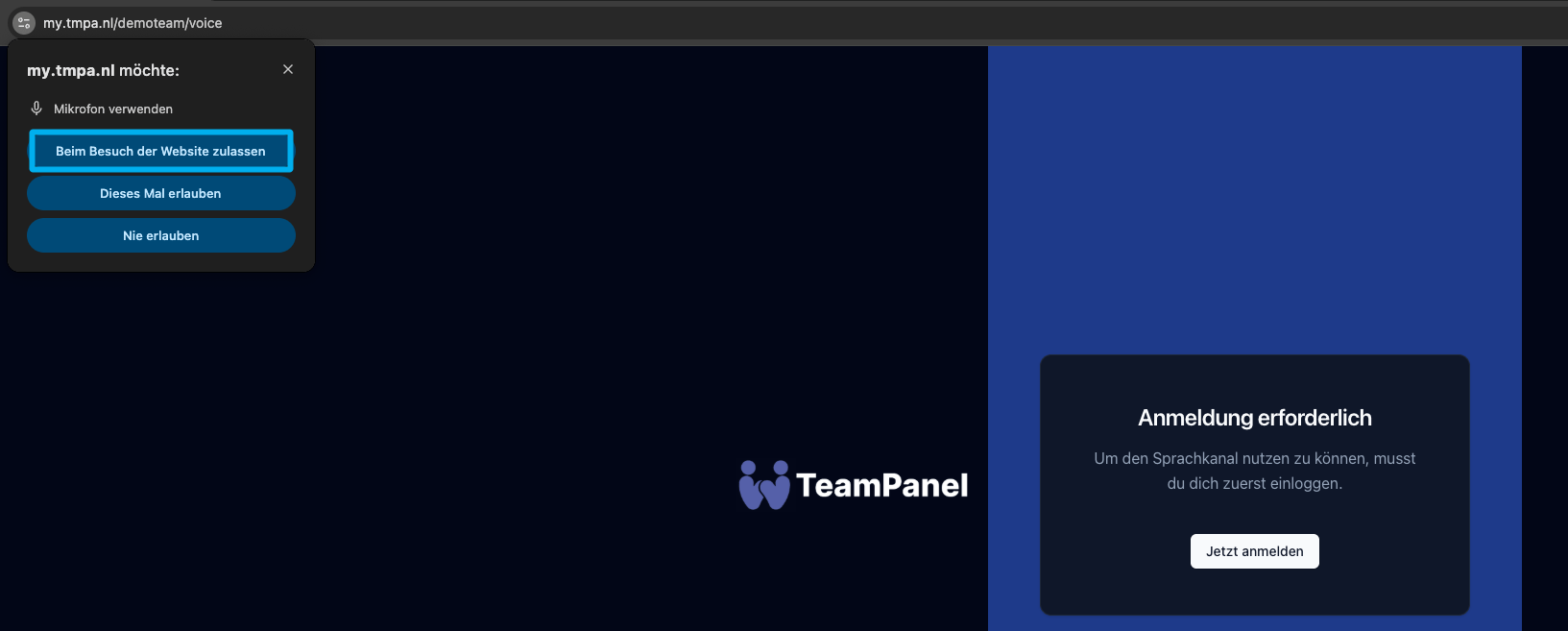
3. Sign in
Success
We recommend signing in with Discord or Google to get started immediately without email verification. That way you do not need to remember an email or password.
4. Microphone and speaker settings
Choose your preferred microphone and speaker source here. You can also use the test functions to verify your settings.
5. Connect VoiceChat
:tada: Have fun in voice chat! We look forward to your feedback.
VoiceChat FAQ
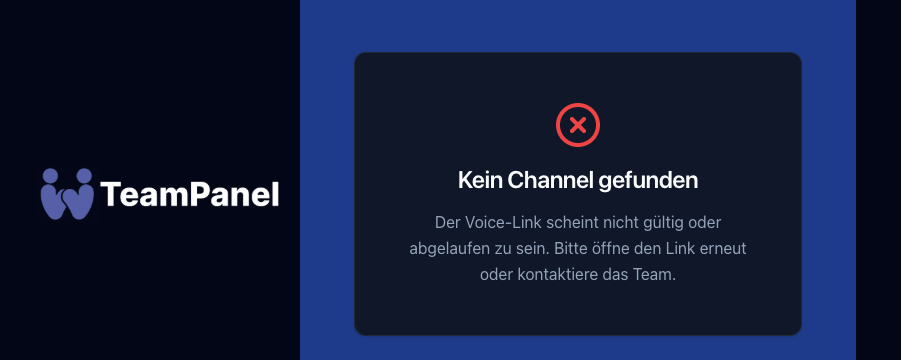
No channel found
Your VoiceChat link is invalid. Please reconnect to the server and then click the new voice link. If the error occurs again, please contact Support.
I cannot hear other players
Please check your microphone and speaker settings. You can also try ending the connection by clicking the red "Hang up" button, and then reconnecting. If problems persist, please contact Support.