

Backups
Back up your databases or system files through TeamPanel.
Backups
Our backups module helps you back up your database outside the server. If you lose data on your server, you can still access the latest version of your database through our module.
To set up the backups module, go to the module page under Administration → Backups, or simply click the button below:
Go to module page
On the module page, you can see all backup tasks that have already been created. To create a new one, click the plus icon in the top right.
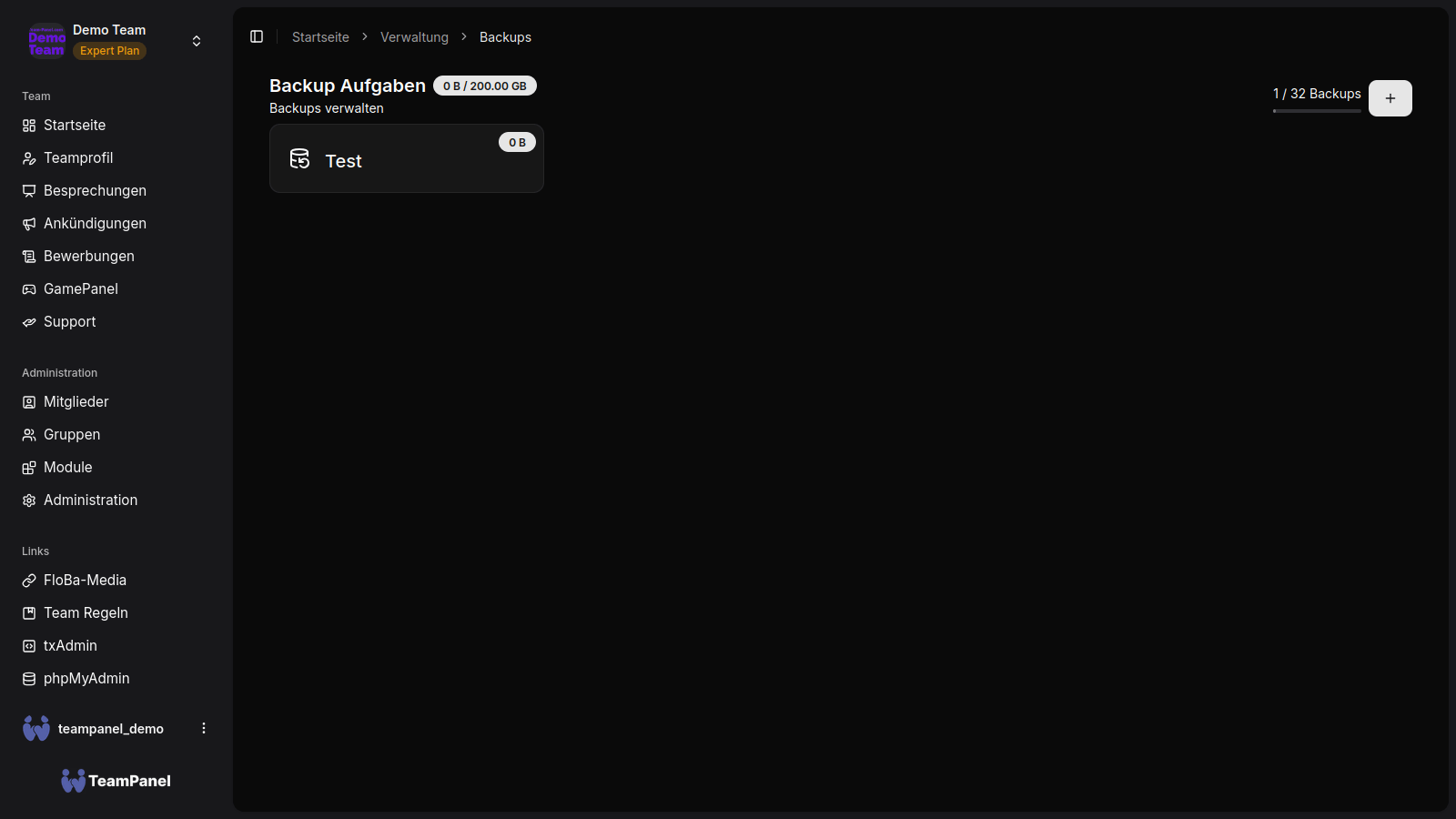
Create a backup task
When creating a backup task, a form opens. You need to enter various details for the backup task. There are different types of backup tasks, and each type requires different information.
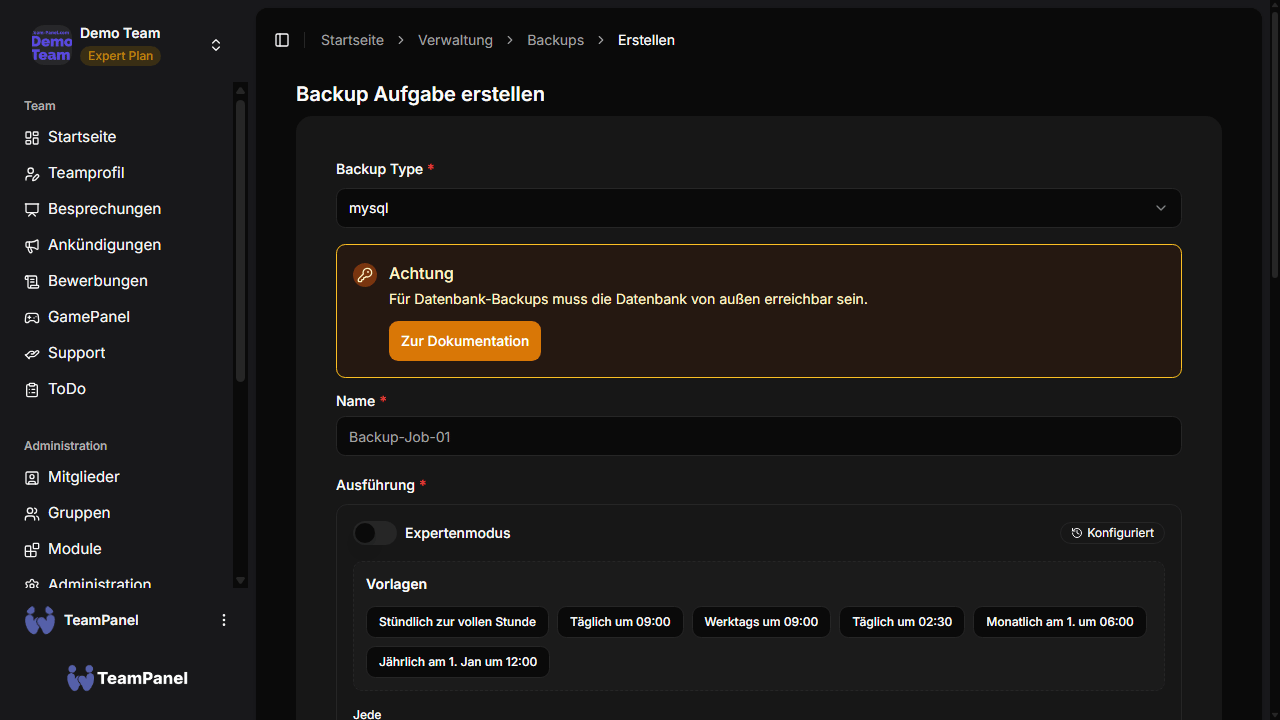
The name of the backup task and its schedule work the same way for all types.
Schedule:
CRON sync tasks are used for scheduling. These let you run tasks at specific times.
Info
In expert mode, you can enter the CRON string directly.
Warning
For database backups to be created, the database must be reachable from outside.
When creating a backup task for MySQL or MariaDB, the following information is required:
- Database: The name of the database to back up.
- Username: The username of the account that has access to the database.
- Password: The password of the account that has access to the database.
- Host: The hostname of the database server (in most cases the server IP address or a domain).
- Port: The port of the database server (in most cases 3306).
Warning
For database backups to be created, the database must be reachable from outside.
When creating a backup task for Postgres, the following information is required:
- Database: The name of the database to back up.
- Username: The username of the account that has access to the database.
- Password: The password of the account that has access to the database.
- Host: The hostname of the database server (in most cases the server IP address or a domain).
- Port: The port of the database server (in most cases 5432).
To create a backup task for a system (e.g. Linux), an SSH key must be configured. You can find instructions here:
How do I add an SSH key?
Once the SSH key has been added, you can fill in the remaining required fields:
- Host: The IP address or domain of the server
- Port: The SSH port of the server (default: 22)
- Username: The username the SSH key was added for (default: root (insecure!)) Directories to back up: Directories that should be backed up
(e.g./home/meingta5server/txData/default/resources) - Files/folders to exclude: Directories that should not be included in the backup
(e.g.**/.cache/**: this would exclude all hidden folders named "cache" from the backup).