

Modules
Log-offs
Log-offs
The log-off module lets team members log off for specific time periods or specific events. This feature is especially useful for team meetings, as logged-off members automatically appear as "logged off" in the corresponding meetings when the log-off overlaps with the meeting period.
How it works
The log-off system offers the following options:
- Time-based log-offs: Log off for a specific time period
- Event-specific log-offs: Targeted log-off for individual meetings
- Automatic integration: Link with the meetings module
- Reason required: Transparency through stating log-off reasons
View log-offs
You can view all your log-offs clearly in your team profile:
Navigation: Team profile > Your log-offs
.31a7e6d3.png&w=3840&q=75)
Overview
In the log-off overview, you see all active and past log-offs, including time period and reason.
Create a new log-off
Creating a log-off is simple and quick:
Step-by-step guide
- Navigation: Go to
Team profile > Your log-offs - Create: Click the "+" icon next to "Your log-offs"
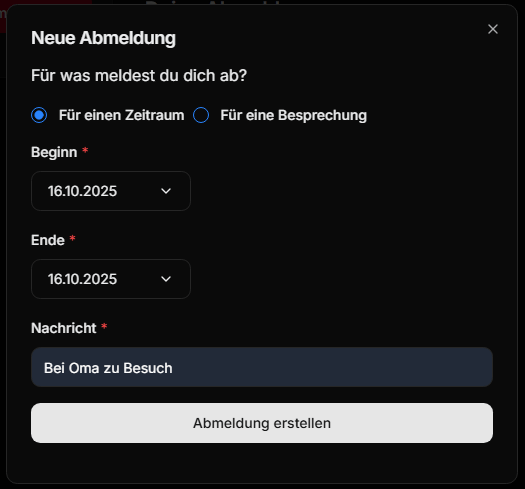
- Configuration: Fill out the log-off form:
- Time period: Choose the log-off period
- Or meeting: Alternative – choose a specific meeting
- Reason: Provide an understandable reason
- Submit: Confirm the log-off
Types of log-offs
Time-based log-off
- Use case: For longer absences (vacation, illness, etc.)
- Benefit: Automatic consideration in all meetings during the period
- Example: "Vacation from 08/15 to 08/22/2024"
Event-specific log-off
- Use case: For individual meetings or events
- Benefit: Precise log-off without affecting other appointments
- Example: "Cannot attend weekly meeting on 08/20/2024"
Integration with other modules
Meetings module
- Automatic marking as "logged off" in relevant meetings
- No impact on attendance statistics during log-offs
- Visible reason for meeting leaders
Automation
- Possible notifications about new log-offs
- Integration with Discord notifications
- Email updates for team leadership
Best practices
Log off in good time
- Submit log-offs as early as possible
- Log off at least 24 hours before a meeting
- In case of illness: submit as soon as possible afterward
Meaningful reasons
- Keep them short and precise
- No sensitive details required
- Examples: "Vacation", "Illness", "Family appointment"
Regular review
- Regularly review expired log-offs
- Delete log-offs that are no longer valid
- Inform the team if you become available unexpectedly