

Create / Join a Team
Learn how to create your first team in TeamPanel and complete the onboarding process.
Create / Join a Team
Getting your own team in TeamPanel is quick and straightforward. This guide walks you through the creation process and subsequent onboarding at /setup.
Create a New Team
To get started, click "Create new team" in your team overview.
Step 1: Choose a Team Name
First, choose a name for your team. This name will be displayed throughout the panel and identifies your team. Don't worry – you can change it anytime later in the team settings.
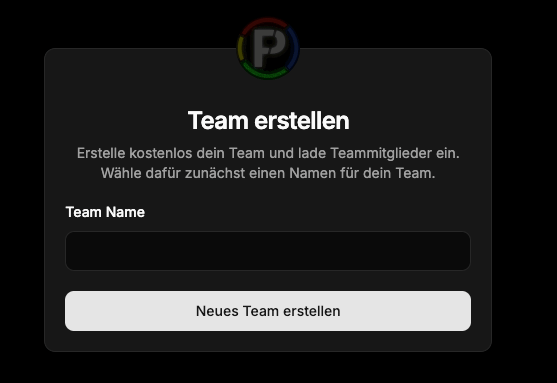
Then click "Create new team" to continue with onboarding.
Onboarding Process (/setup)
After the team has been created, the onboarding assistant starts at /setup to prepare your team optimally.
Step 2: Discord Bot (Optional)
In the first onboarding step, you can invite our Discord bot to your server. This is optional but recommended – e.g. for role sync and notifications.
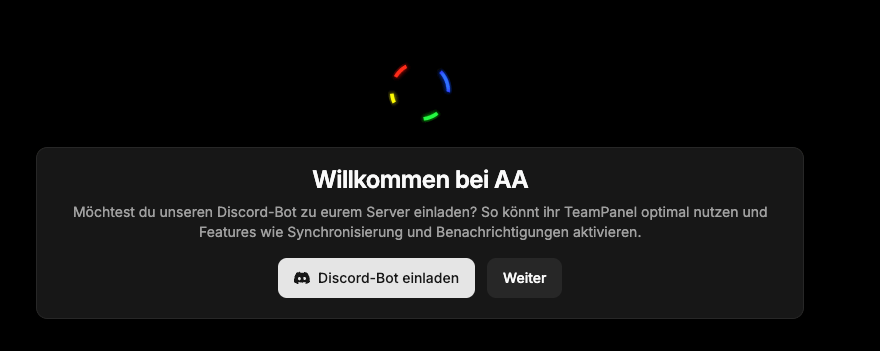
You can either click "Invite Discord bot" or skip this step with "Continue".
Step 3: Groups
Next, create groups (e.g. ranks or departments). If the Discord bot is connected, you can often import groups from Discord or link them to existing roles.
Groups control permissions in the panel later. Learn more: Groups.
Step 4: Choose a Plan / Trial
Then choose a plan or start a 14-day trial for Starter, Pro, or Expert. The Free plan remains available without a trial.
Details on pricing, trial, and cancellation: Billing / Manage Plan.
Step 5: Select Modules
Finally, choose the optional modules for your team. Typical categories in setup:
- Applications / Apply – public application portal
- GamePanel – game server management
- Backup – data backups
Other core features (meetings, news, to-do, links, etc.) are built into the panel and controlled via permissions – not through this module selection.
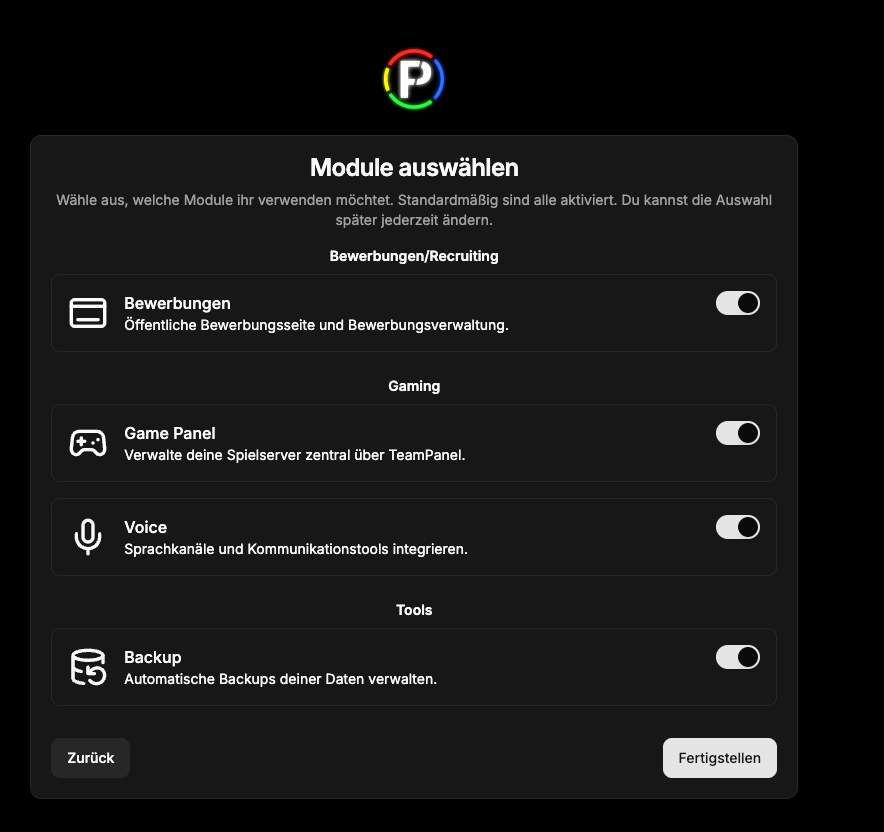
You can adjust the selection later under Administration → Modules. Guide: Modules.
Click "Finish" to complete onboarding.
Team Home Page
Once you've completed onboarding, you'll land on the team home page. From here, you can access enabled modules, statistics, and member management.
Your team is now ready to go!
Join a Team
In addition to creating your own team, you can also join existing teams. This is usually done via a special invitation link.
Join via Invitation Link
When you receive an invitation to a team, the link might look like this:
https://team-panel.com/teams/join/d0080a28-c4d2-4abe-9c84-6506f5344c99
Important note about invitation links
Please note that invitation links are only valid once for security reasons. Once a user has joined the team via this link, the link expires and cannot be used again.